
Introduction DbGate
Introduction
DbGate is a SQL management tool.
You can use it to:
-
Execute SQL queries.
-
View the contents of tables in a database.
-
View a schema of the database structure.
1. Viewing Tables
To view a table in a database, do the following:
-
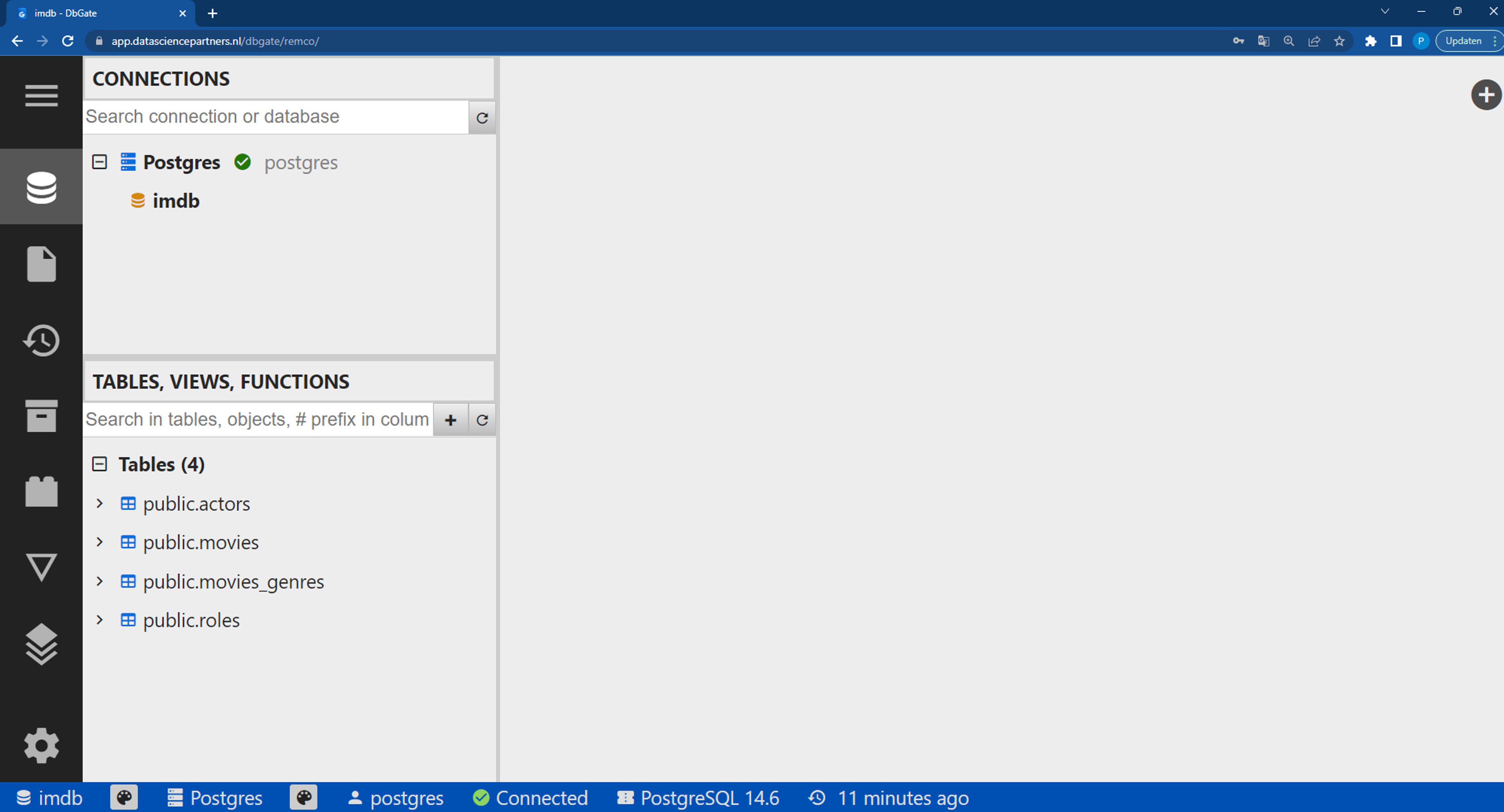
Click on Database connections in the menu.
-
Select a database.
- Here: database
imdb: a database with movie data.
- Here: database
-
Click on one of the tables:
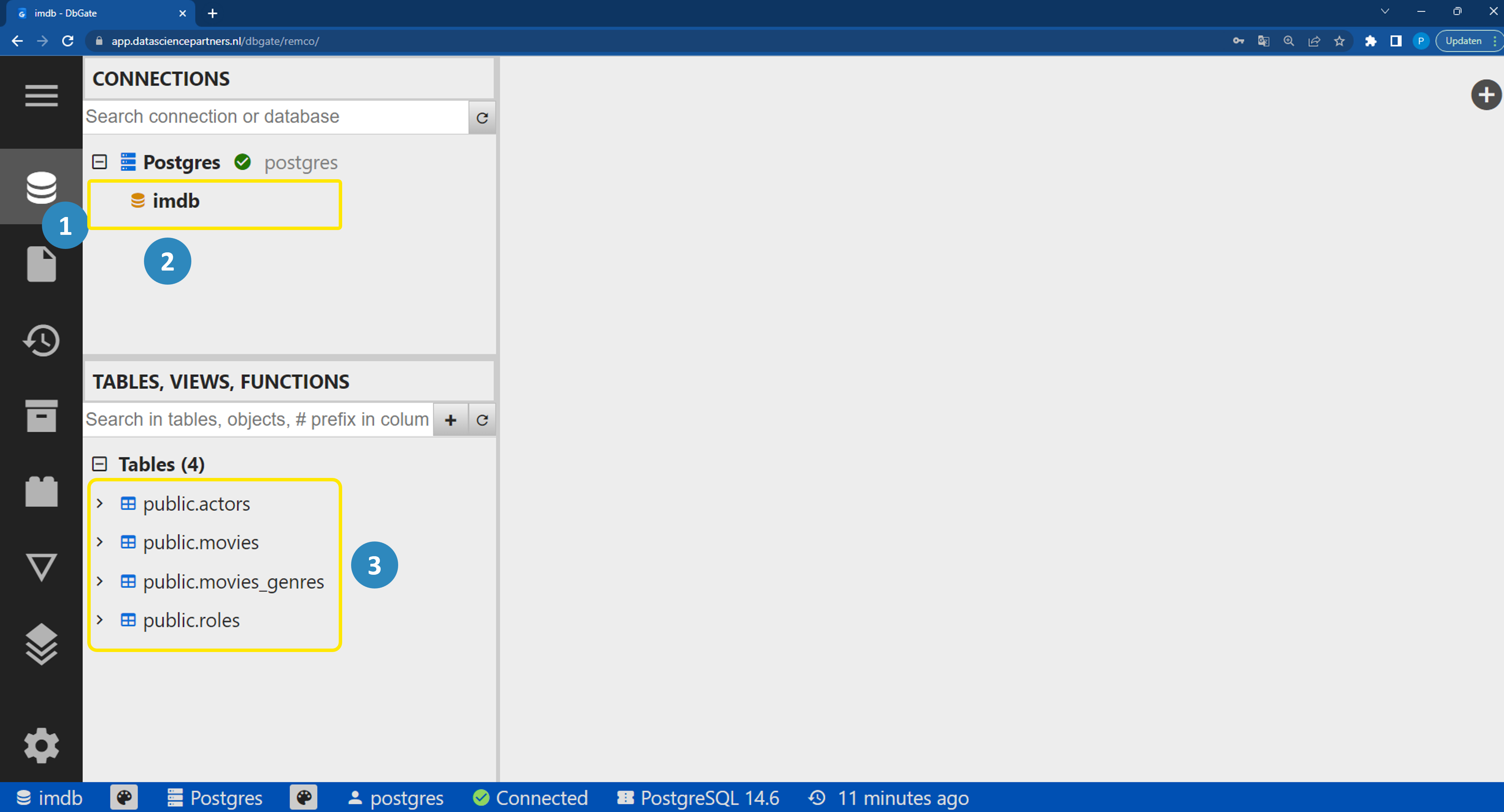
- We click on table
movies:
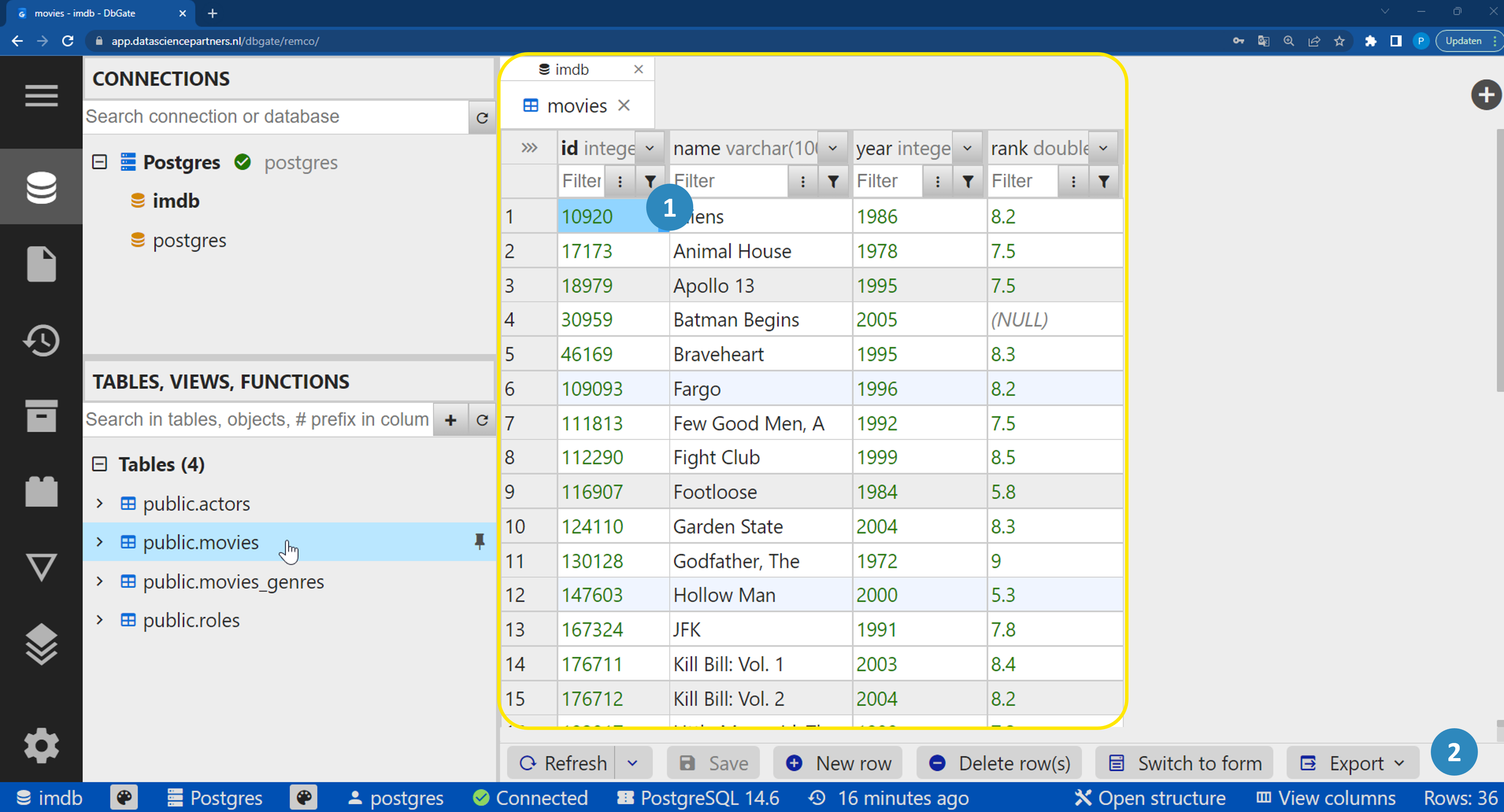
Here you can:
-
Filter, make selections, sort.
-
See how many rows there are.
2. Viewing Database Structure
To view the structure of a database, do the following:
-
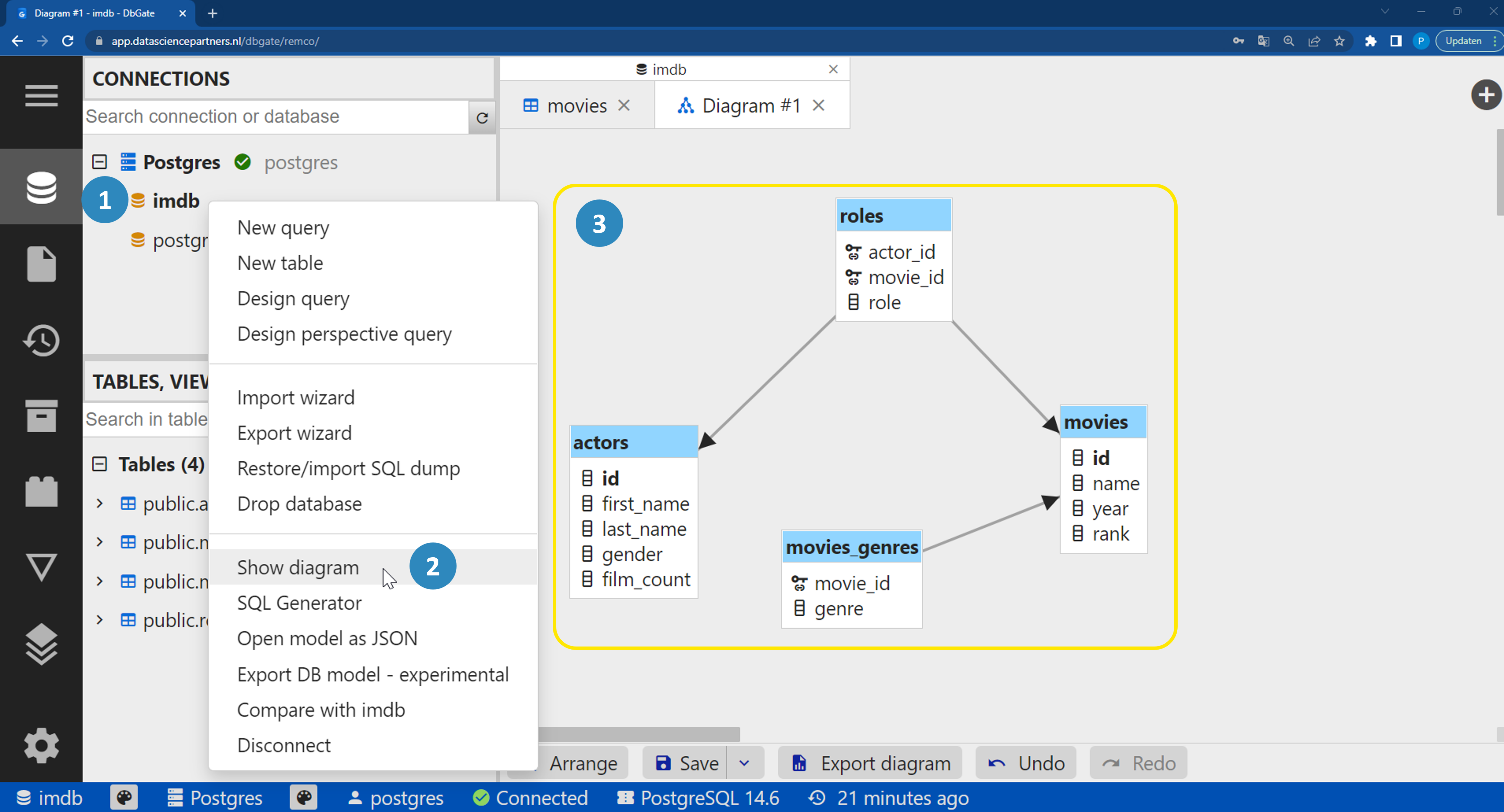
Right-click on the database.
-
Click on Show diagram.
-
You will see the different tables in the database:
-
The arrows indicate how the tables are connected.
-
A database consisting of tables with interrelationships is called a relational database.
- We will discuss this in more detail later.
3. Executing a Query
To execute a query:
-
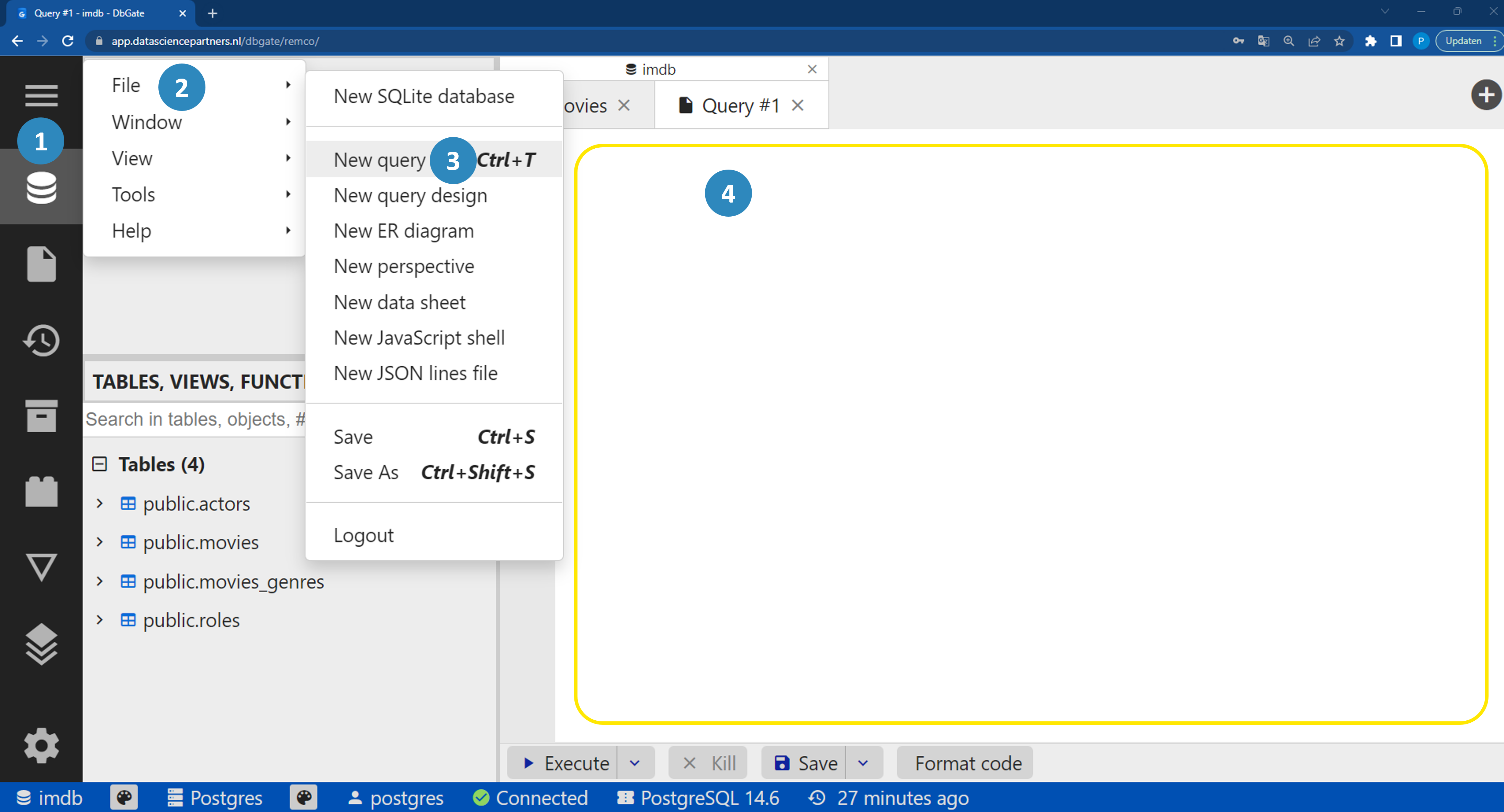
Click on the menu.
-
Go to File.
-
Click on New query.
-
A new tab for a query will open.
-
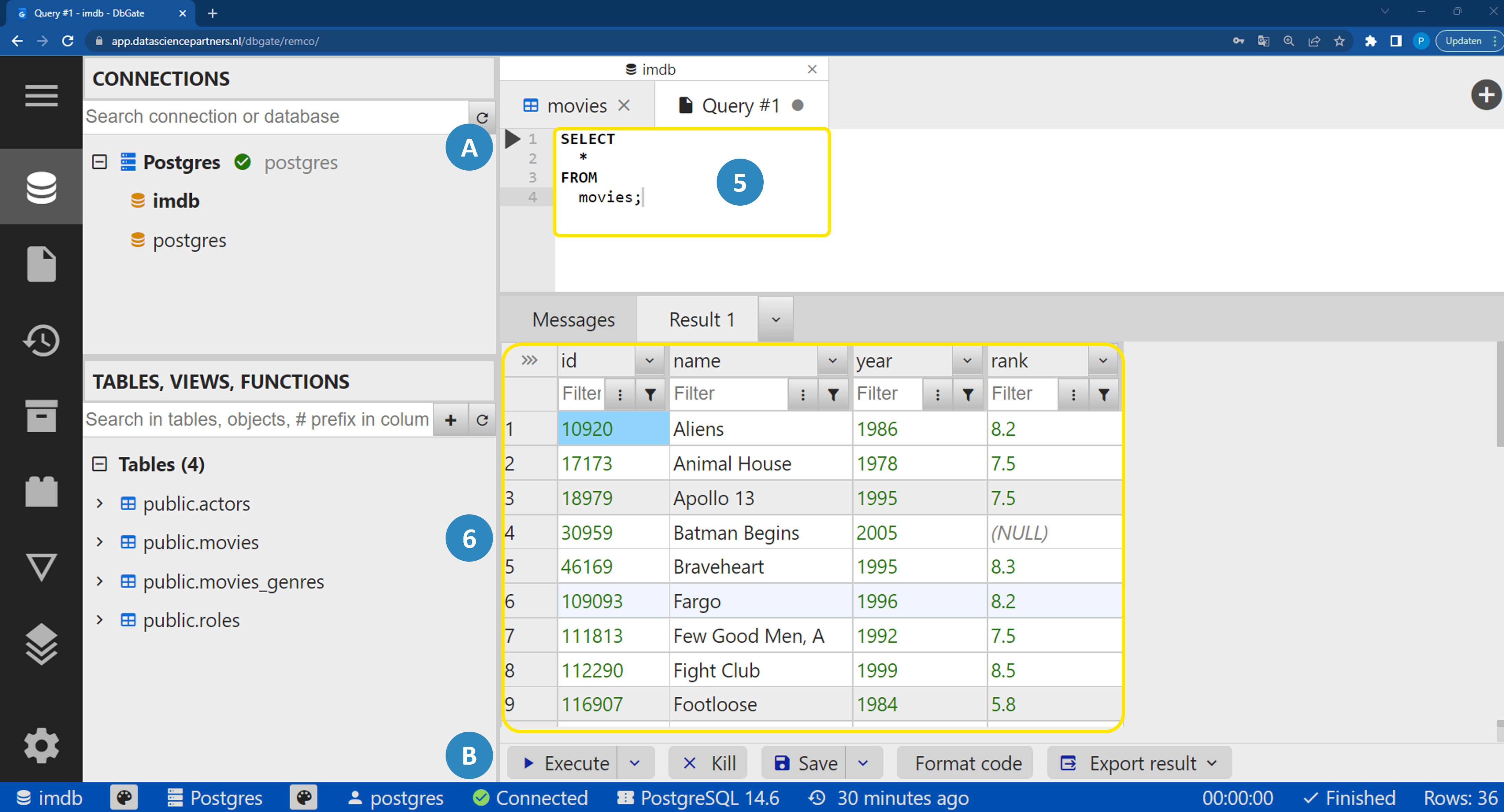
Write a query (you don't need to understand this yet).
-
Execute the query with:
- (A) The play button.
- (B) The execute button.
- Keyboard shortcut CTRL + Enter (Windows), or Cmd + Enter (Mac).
-
View the result of your query.
4. Saving a Query
To save a query:
-
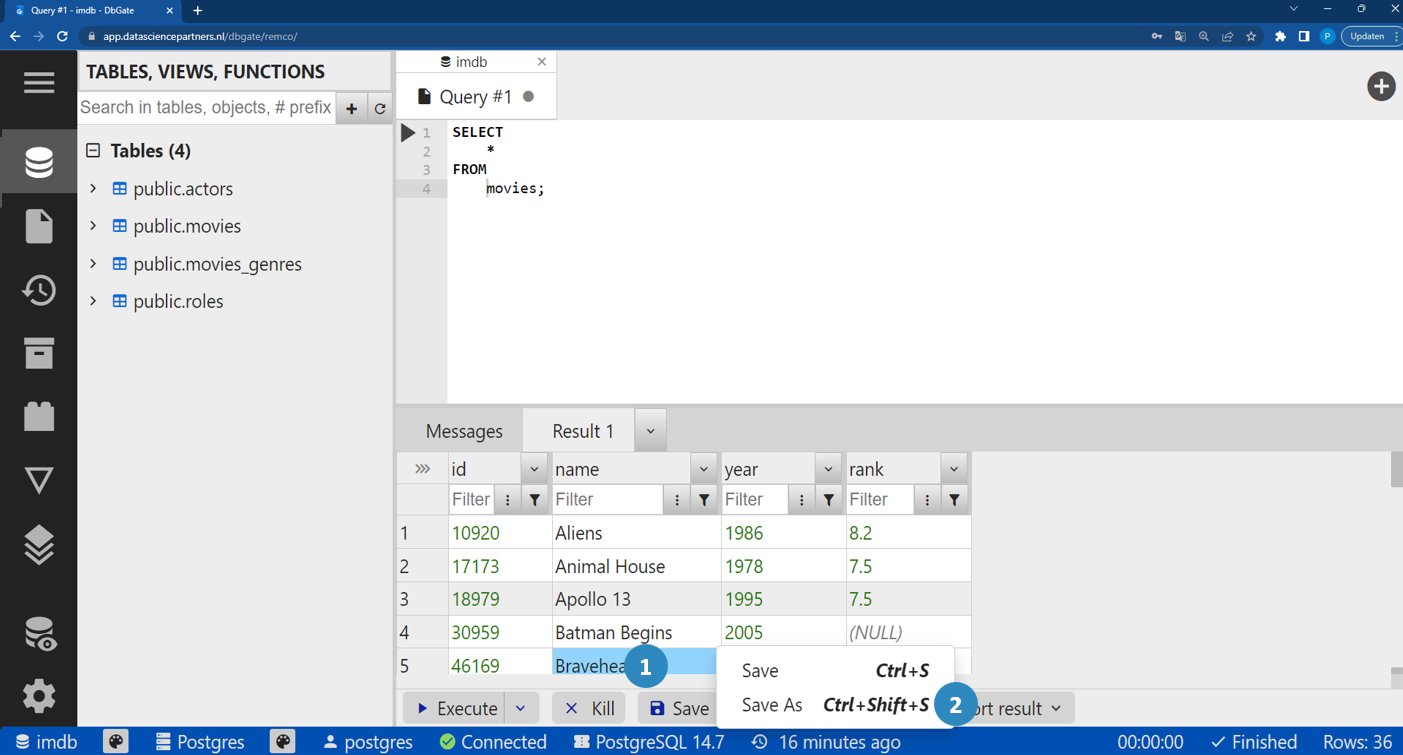
Click on Save at the bottom of the screen.
-
Click on Save As.
-
Choose a filename and save the query.
To open a saved query:
-
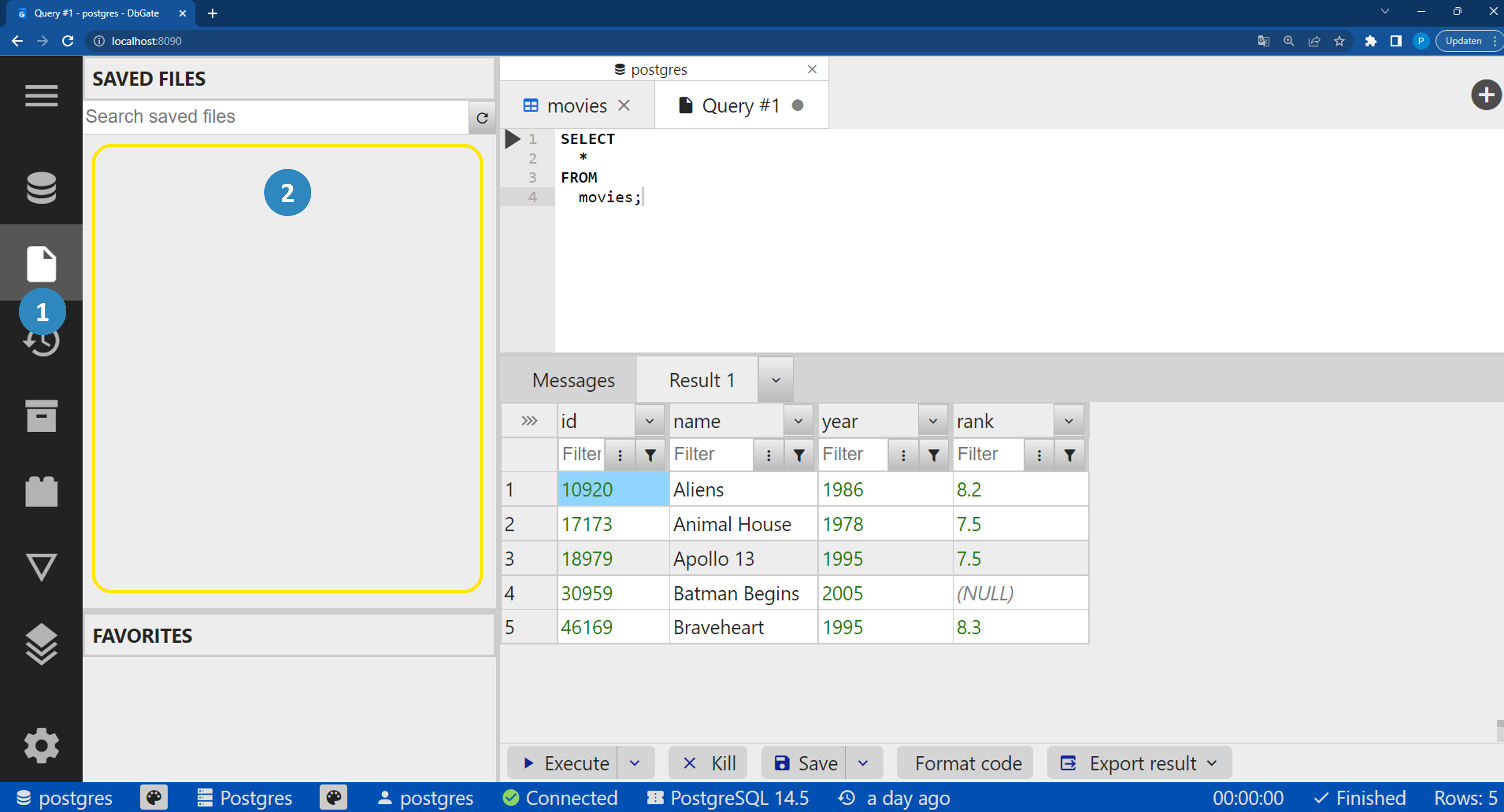
Click on Favorites & Saved files.
-
Click on a query file.
Summary
With DbGate we can now:
-
View tables.
-
View database structure.
-
Write and execute queries.
-
Save and open queries.